The system is processing. Please wait a moment!




- Home Tiêu Điểm Ngành Sân Khấu - Sự Kiện Kinh Nghiệm Tổ Chức Sự Kiện Causes and Solutions for Microphone Buzzing



Causes and Solutions for Microphone Buzzing
TABLE OF CONTENTS
Microphone crackling is a common audio problem in events, livestreams, conferences, and year-end parties. Crackling, interference, or distortion not only reduces the quality of the program but also annoys listeners and negatively impacts the overall experience.
In this article, HSV Media will help you understand the causes of microphone crackling and guide you on how to quickly and effectively fix it to ensure your sound system always operates smoothly.
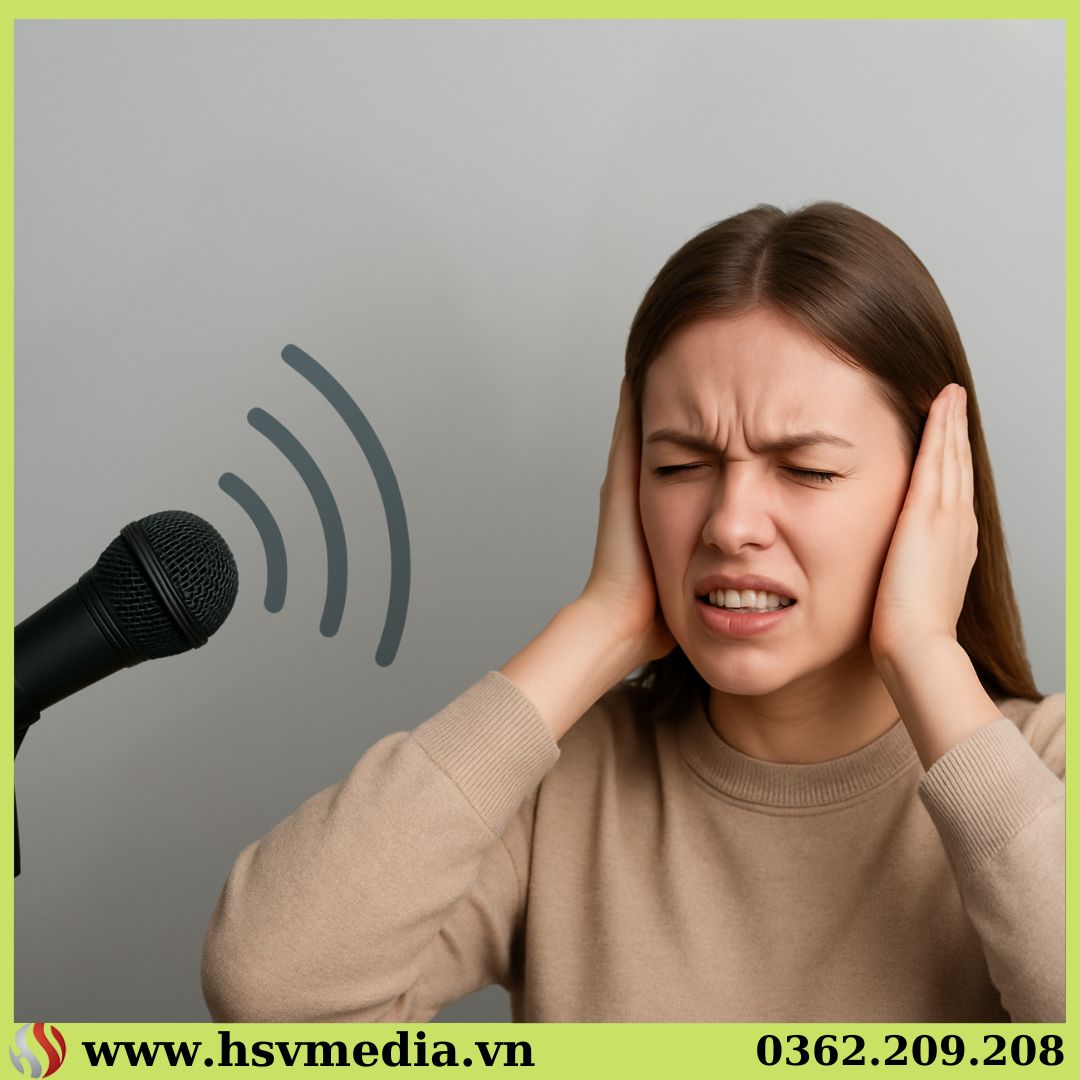
SIGNS OF A CRACKLING MICROPHONE
Early detection of microphone crackling allows technicians or users to address the issue promptly, preventing program interruptions and ensuring the best possible audio experience for the audience. Below are the most common signs:
1. The sound produced is distorted, muffled, or harsh.
This is the most obvious example. When using a microphone, you will hear:
- The voice is cracked and lacks clarity.
- The sound is distorted and unnatural.
- The high notes sound harsh and shrill , causing discomfort to the listener.
This error usually occurs when the microphone is overloaded with signal, the gain is set too high, or the microphone is degraded.
2. The volume fluctuates, sometimes loud, sometimes soft, even though the distance remains constant.
If the speaker maintains the same distance but:
- The sound produced is uneven , sometimes loud, sometimes weak.
- The voice is slightly interrupted.
- The system has difficulty stabilizing the volume.
This indicates a problem with the microphone's contact, a loose connection, low battery, or a malfunction in the wireless microphone's receiver/transmitter.
3. A buzzing, hissing, or loud background noise appears.
Microphone static is often accompanied by annoying background noise:
- A humming sound like the wind
- Constant hissing or sneezing when not speaking.
- A slight but persistent buzzing sound.
- A crackling sound when touching the microphone body.
This could be a sign of signal interference, a broken microphone cable, a poor-quality connector, or electrical interference in the sound system.
4. The sound is delayed, choppy, or jerky.
When the microphone has a delay or the sound comes out choppy:
- The speaker finished speaking, but the sound came through the speakers slowly.
- The sound is cut off in segments.
- Sound transmission is not continuous.
This problem commonly occurs with wireless microphones when the battery is low, the distance is too great, or the receiver is experiencing signal interference.
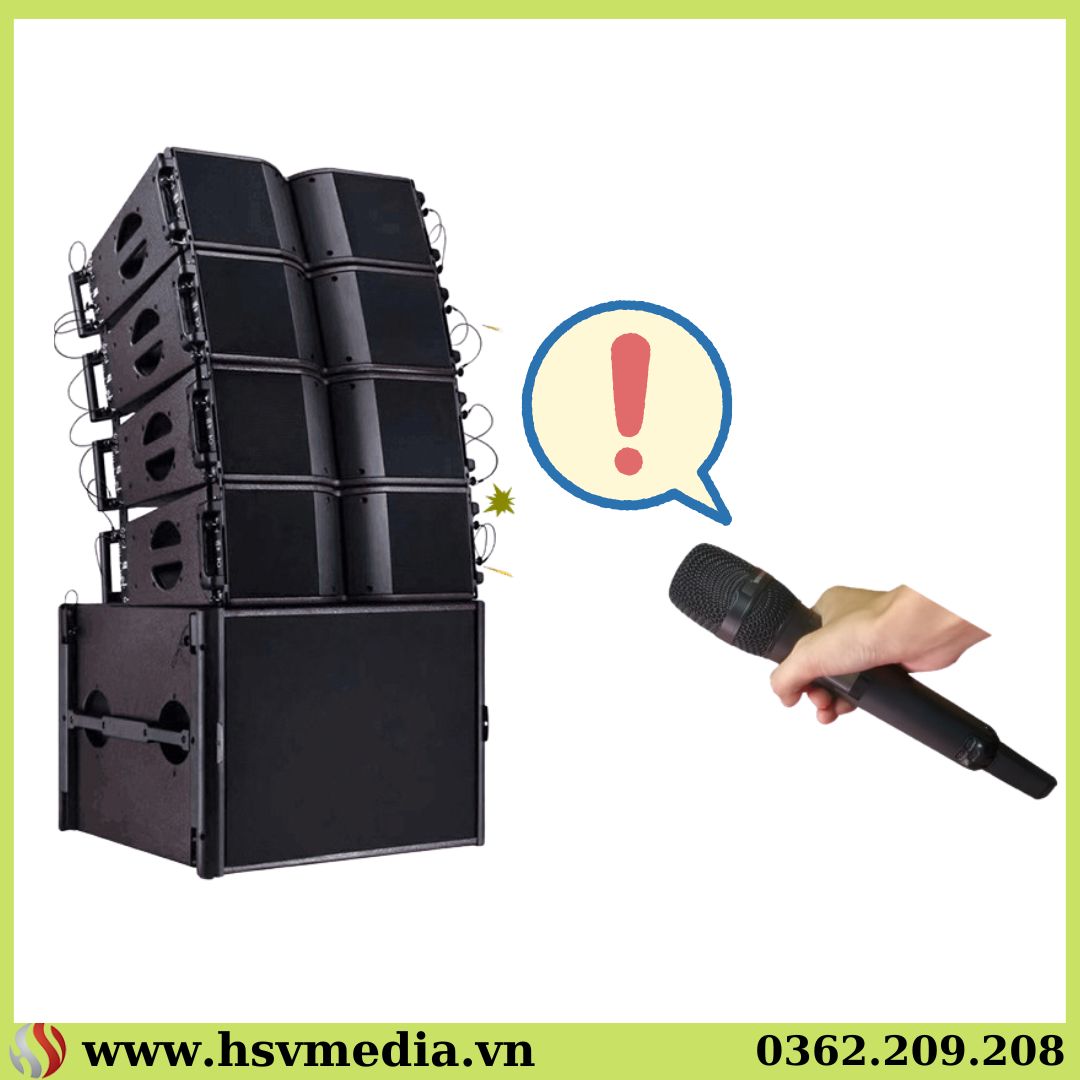
5. The microphone produces feedback when moved or rotated.
While not always a "hissing" sound, persistent feedback is a symptom directly related to the quality of the microphone and sound system:
- Microphone pointed towards speaker causes feedback.
- EQ treble is set too high.
- Speaker placement on the stage is technically incorrect.
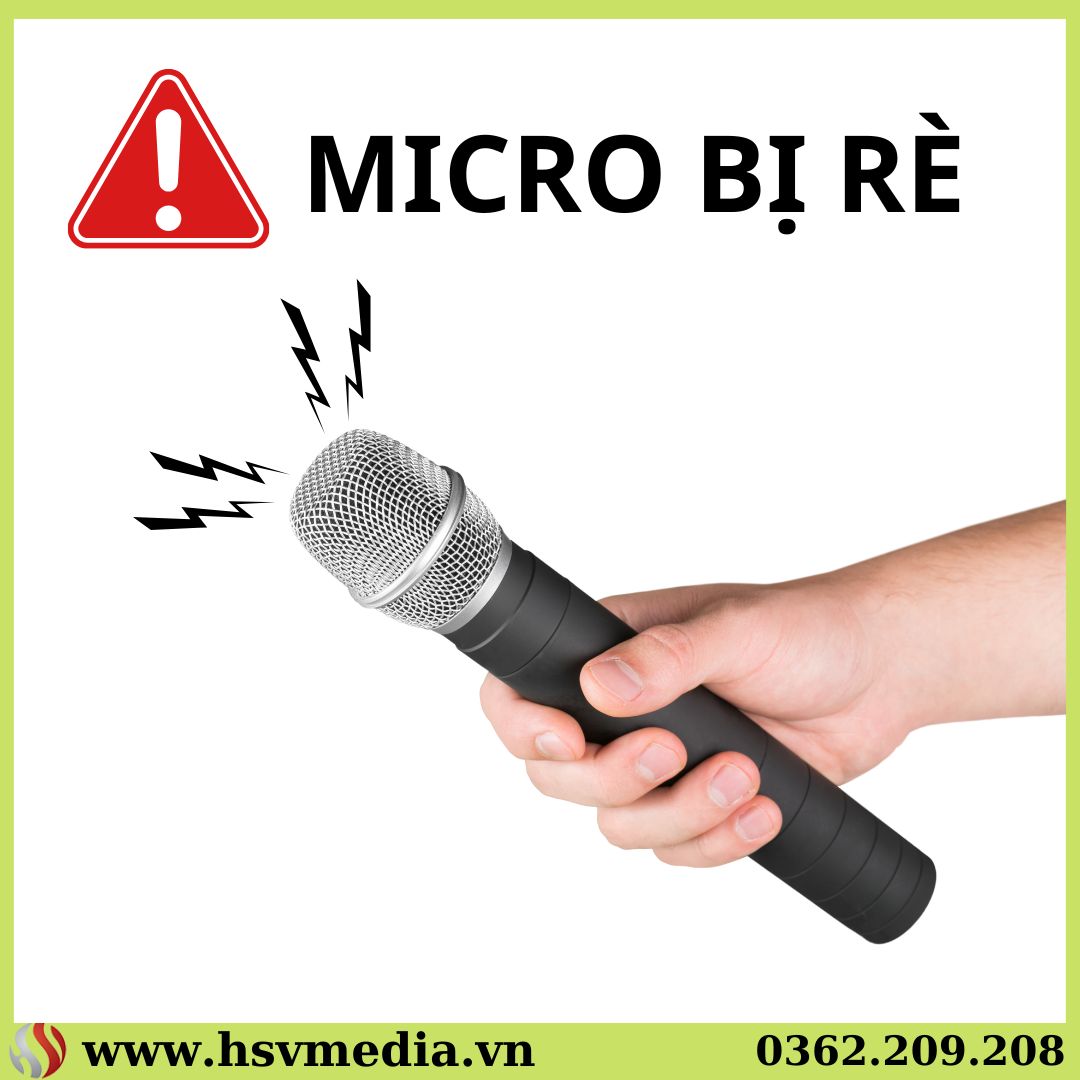
WHY DOES MY MICROPHONE SOUND CRACKLING?
1. The microphone or microphone cable is damaged.
- The handheld microphone has been dropped multiple times.
- The 6.5mm/3.5mm microphone jack cable is broken internally.
- Loose jack pins, poor contact.
- The microphone has been used for too long, and the diaphragm is weak.
2. Due to interference from the wireless microphone.
- Frequency overlap with other devices
- The distance between the microphone and the receiver is too far.
- Low or nearly depleted battery
3. Due to incorrect gain/volume settings.
- The gain on the mixer is set too high → causing distortion.
- The EQ settings are too strong for bass/treble.
- Audio processor misconfigured
4. Due to speaker or amplifier overload.
- The speaker is crackling due to insufficient power.
- The amplifier is operating at excessive power continuously.
- Poor quality or loose speaker cable connections
5. Due to the acoustic environment
- The stage speakers are placed in the wrong position → causing feedback and distortion.
- Enclosed space, strong sound reflection.
- Many electronic devices cause signal interference.
SIMPLE AND QUICK WAYS TO FIX A MICROPHONE WITH NOISE
1. Check the microphone and cable.
- Replace the wireless microphone battery.
Try plugging the microphone into a different port on the mixer.
- Check if the connector is loose.
- Replace the microphone cable if you suspect a hidden break.
2. Adjust the mixer correctly.
- Reduce the gain to a reasonable level.
- Reduce treble if the sound is harsh.
- Reduce the bass if the sound is muffled or muddy.
- Check compressor, limiter, effect
3. Avoid interference or signal overlap with wireless microphones.
- Reset the microphone frequency to avoid interference with other devices.
- Place the receiver in a high, open location.
- Maintain a distance of 30–50m between the microphone and the receiver.
4. Check the speakers and amplifier.
- Reduce the overall volume if the speakers are overloaded.
- Check the speaker wires and speaker terminals.
- Ensure the amplifier has sufficient power for the system.
5. Dealing with howling and hissing noises.
- Move the speaker away from the microphone.
- Do not point the microphone directly at the speaker.
- Use anti-feedback devices if it's a large event.
TIPS TO REDUCE MICROPHONE STUTTERING AT EVENTS
To ensure clear sound and minimize microphone distortion , crackling, or interference during broadcasts, you can apply the following important tips:
1. Test the sound system at least 30 minutes before the event.
Checking the sound system before the show starts allows technicians to easily detect microphone errors, wiring issues, interference, or incorrect setup. This is a crucial step to ensure stable sound and avoid unexpected problems.
2. Use quality equipment or rent from a reputable supplier.
High-quality microphones, mixers, speakers, and amplifiers will significantly reduce the risk of distortion, feedback, or signal loss. If you don't have good equipment, renting sound equipment from a professional company is the best option to ensure effectiveness.
3. Always have a spare microphone ready.
During an event, microphones can suddenly malfunction. Having spare microphones available allows for quick replacement, avoiding program interruptions.
4. Clean and maintain your microphone regularly.
Dust and dirt accumulating on the microphone diaphragm, receiver, or jack can degrade sound quality. Regularly cleaning your microphone helps maintain clear and consistent sound.
5. Proper speaker and stage placement.
Speaker placement directly affects the likelihood of feedback and distortion. Here are some important points to note:
- Do not point the microphone directly at the speaker.
- Position the speakers away from the microphone and avoid feedback.
- Set up the stage and sound system according to the event's technical standards.
6. Use quality batteries for your wireless microphone.
A weak battery is a leading cause of interference, static, or signal loss. Use a good battery, preferably a new one, for important programs.

WHY SHOULD YOU RENT EVENT SOUND EQUIPMENT FROM HSV MEDIA?
HSV Media provides professional sound systems – microphones – mixers – speakers – and stage equipment – for hundreds of large and small events. When you rent equipment, you get:
- Event technicians will handle any issues immediately.
- High-quality equipment, minimizing buzzing and howling noises.
- Proper setup ensures clear, crisp, and stable sound.
- We provide consultation to help you choose the most suitable solution for your event space and scale.
Hotline: 0362.209.208
government:https://hsvmedia.vn/
Address: 184/20 Le Dinh Can Street, Ward 6, Tan Tao Ward, Ho Chi Minh City
Price List for Event Equipment Rental Services
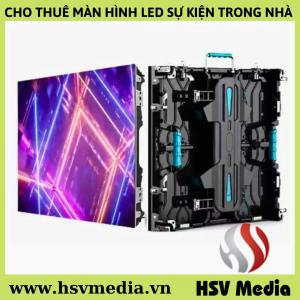
.jpg "LED Screen")
.jpg "Event Stage")
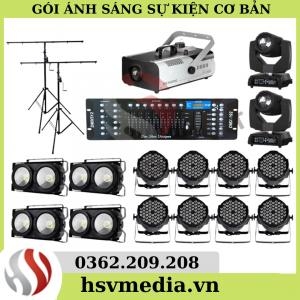
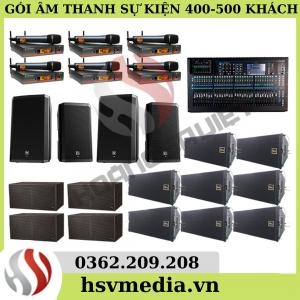
.jpg "Sound and Light")
.jpg "Event Equipment")